Overview: Stock Bundle
Stock Bundling allows users to create a virtual stock code that consists of multiple stock items. The bundled item can be used in Sales and Purchase transactions while the system automatically manages the stock movement of the underlying component items.
This feature is useful for businesses that sell products as a package, set, or hamper while maintaining inventory control of individual items.
Scenario:
A company sells a hamper that consists of:
- Item A
- Item B
- Item C
Instead of selecting each item individually during sales transactions, the company would like to create a single stock code called Hamper and bundle Item A, Item B, and Item C under it.
When the hamper is sold, the system should automatically deduct the stock quantity of the bundled items according to the quantity sold.
Solution:
Step 1: Create Stock Items
Create the following stock codes:
- Item A
- Item B
- Item C
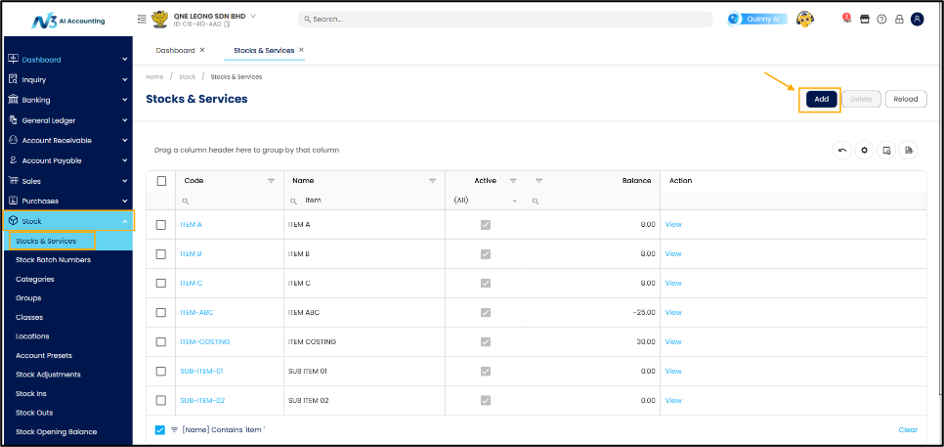
Navigate to Stock>Stocks & Services, then click ‘Add’
Enter Stocks Details as below.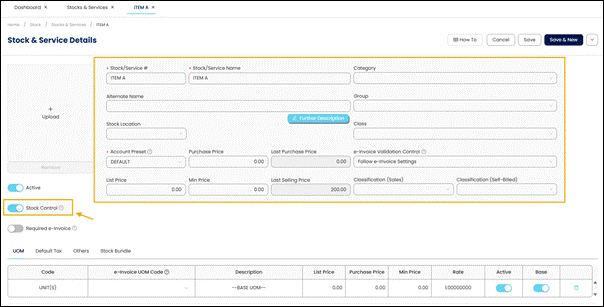
*Notes: Stock Control is an indication that an item is inventoriable. Untick this setting for items being purchased or sold which quantity does not need to be tracked.
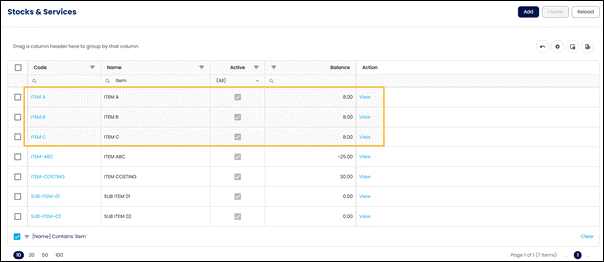
After create stocks, you can see your stocks under the stock list.
Step 2: Configure Stock Bundle
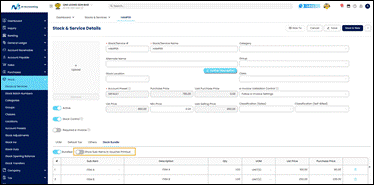
- Create stock Hamper then click Stock Bundle and configure it as a bundled item, toggle it to enable Stock Bundle.
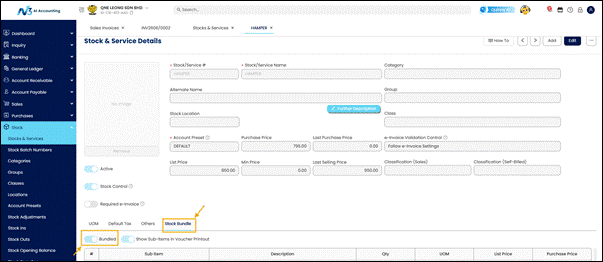
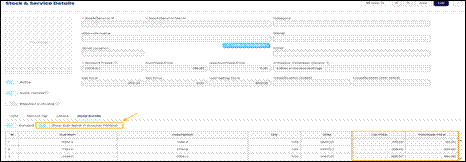
- Add the component items: Item A,B and C. User can set ‘List Price’ and ‘Purchase Price’ as the default price when issue transactions. Toggle ‘Show Sub-items in Voucher Printout’ to enable show sub item when print/preview the report.
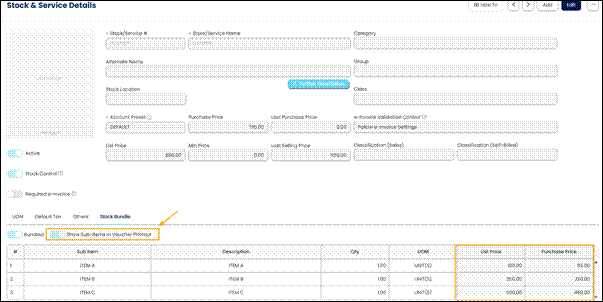
- Save the stock bundle configuration.
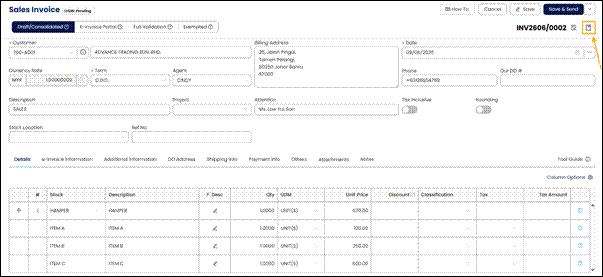
Step 3: Create Sales Invoice
Create a Sales Invoice by navigate to Sales> Sales Invoice.
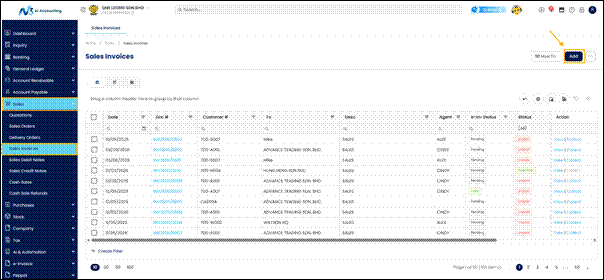
Select Hamper as the item.
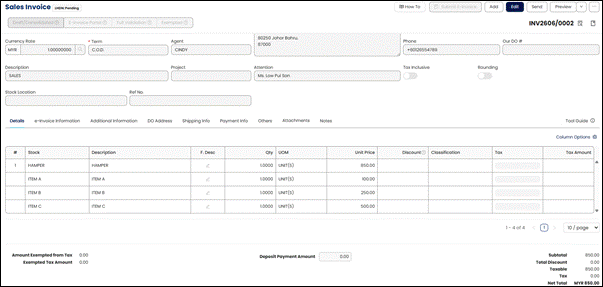
We can change the unit price for the Sub-item, then the stock bundle main unit price will change accordingly. After everything is ok user can save the Sales Invoice.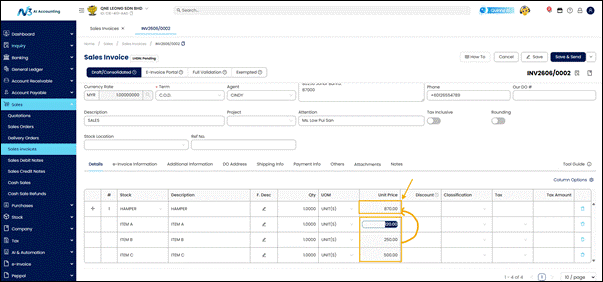
We can go to Stock Journal to see stock out from the sales invoice by clicking Stock Journal
The Stock Journal will show stock out qty with the total amount of each stock.

*Please be note that the Item Hamper will not shown as it is Virtual Stock item.
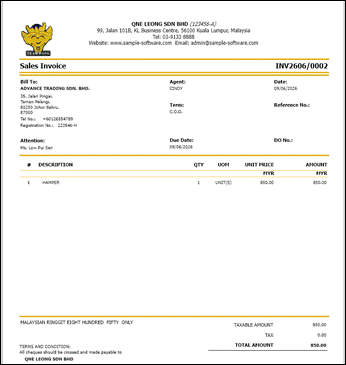
Preview the Sales Invoice (without toggle the Show Sub-Items In Voucher Printout)
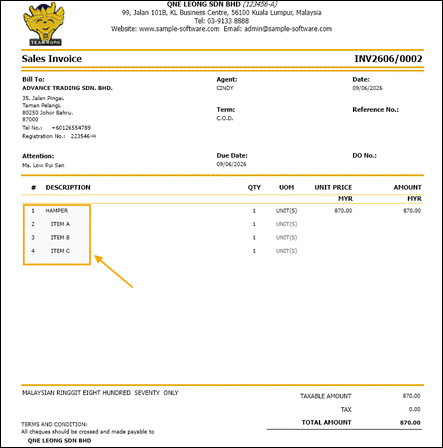
Preview the Sales Invoice (Toggle the Show Sub-Items In Voucher Printout)
Step 4: Check Stock Balance
After the Sales Invoice is posted, review the stock balance of the bundled items.
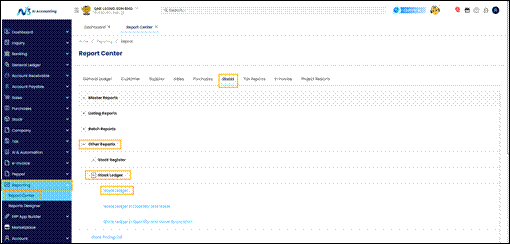
We can check the stock report by navigate to Reporting>Report Center>Stocks>Other Reports>Stock Ledger>Stock Ledger
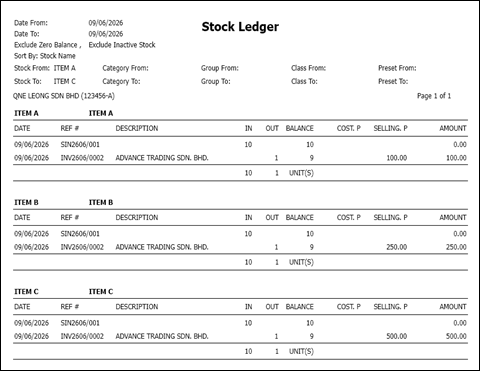
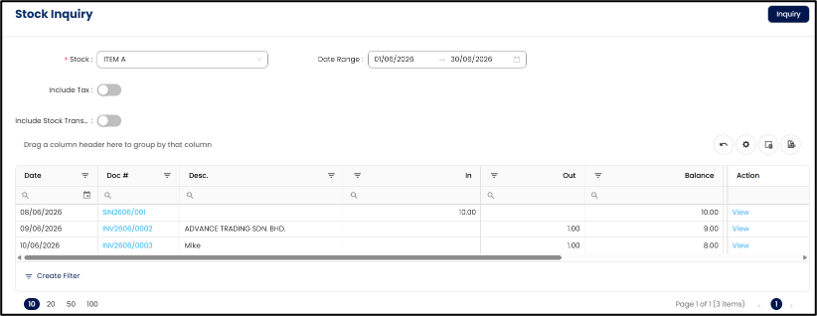
As we can see, the balance was deducted by item Qty accordingly.
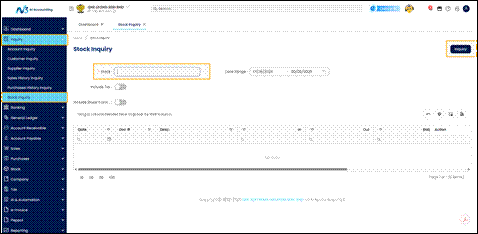
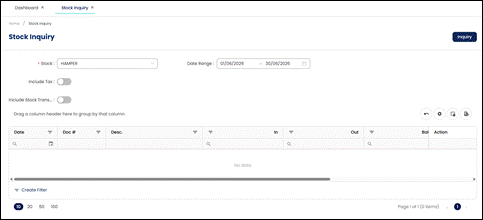
User also can check stock balance per item in the stock inquiry by navigating to Inquiry>Stock Inquiry
If we check stock ‘Hamper’ we would not see the stock balance, as per mentioned earlier than stock bundle is virtual stock.
If we select stock ‘Item A’, we can see that the item balance reflects according to the stock out from the Sales Invoice we created.
Click here to see the pdf file
Was this article helpful?
That’s Great!
Thank you for your feedback
Sorry! We couldn't be helpful
Thank you for your feedback
Feedback sent
We appreciate your effort and will try to fix the article